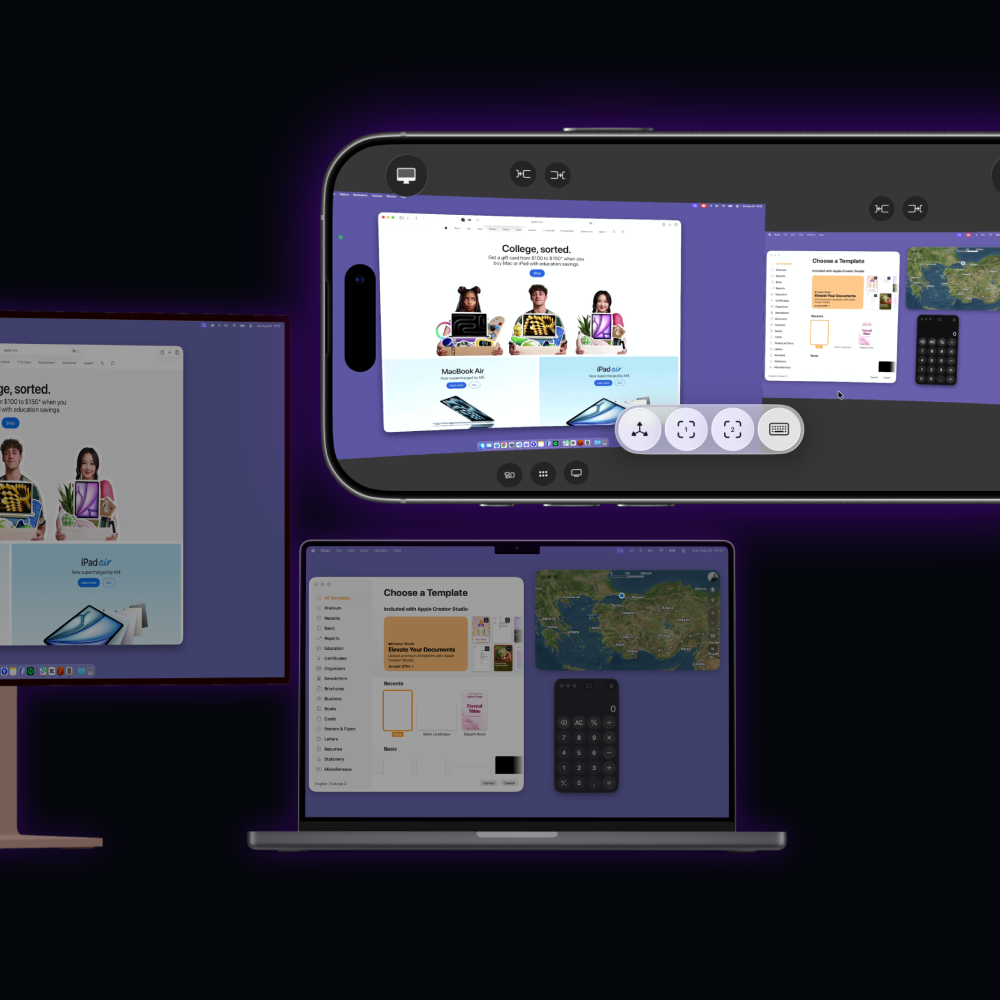
View the displays already connected to your Mac as spatial virtual monitors on iPhone. Move between screens naturally, then touch, type or gesture to take control.
Your screens are not squeezed into a phone. They are placed around you.
Spatial Display turns each selected Mac display into an independent virtual monitor anchored to your surroundings. Turn your phone to look across the workspace, move closer for detail, or recenter any screen directly in front of you.
Multiple monitors form a gentle, user-facing curve instead of one long compressed canvas.
02 / Spatial workspace
Move your phone. The view follows.
ARKit tracks position and orientation in six degrees of freedom. Portrait or landscape, the virtual workspace responds to the way you hold and move your iPhone.
Curved, user-facing multi-monitor layouts
Independent recenter controls for up to five displays
Local Navigation for moving and scaling the workspace
03 / Built for clarity and response
Every display gets its own high-quality stream.
Spatial Display Server captures selected screens with ScreenCaptureKit and sends each one as an independent, hardware-encoded H.264 video track. Resolution and aspect ratio stay independent across your workspace.
1:1Independent stream per selected displayH.264VideoToolbox hardware encodingP2PDirect WebRTC when the network allows
04 / More than viewing
Touch your Mac from iPhone.
Choose a centered crosshair for spatial navigation or Direct Touch to point exactly where you tap. Drag, right-click, scroll and use familiar Mac gestures without leaving the display.
01
Two pointer modes
Crosshair for moving through space. Direct Touch for immediate pointing, clicking and dragging.
02
Multi-touch gestures
Right-click and scroll with two fingers. Switch desktops, open Mission Control, App Exposé and more with three- and four-finger gestures.
03
A Mac-ready keyboard
Esc, Tab, modifiers, arrows and F1–F12 sit above the iOS keyboard. Double-tap a modifier to keep it locked.
04
Controls in space
Desktop navigation, Mission Control, Launcher, Desktop and Dock actions stay attached to each virtual monitor.
05 / Spatial audio
Hear the screen from where it lives.
Mac system audio travels as a separate 48 kHz stereo WebRTC track. Its position follows the main virtual monitor, so direction and volume respond to where the screen sits around you.
Compatible AirPods can add head tracking for a more stable spatial sound field.
06 / The quiet half on your Mac
A compact server that stays out of your way.
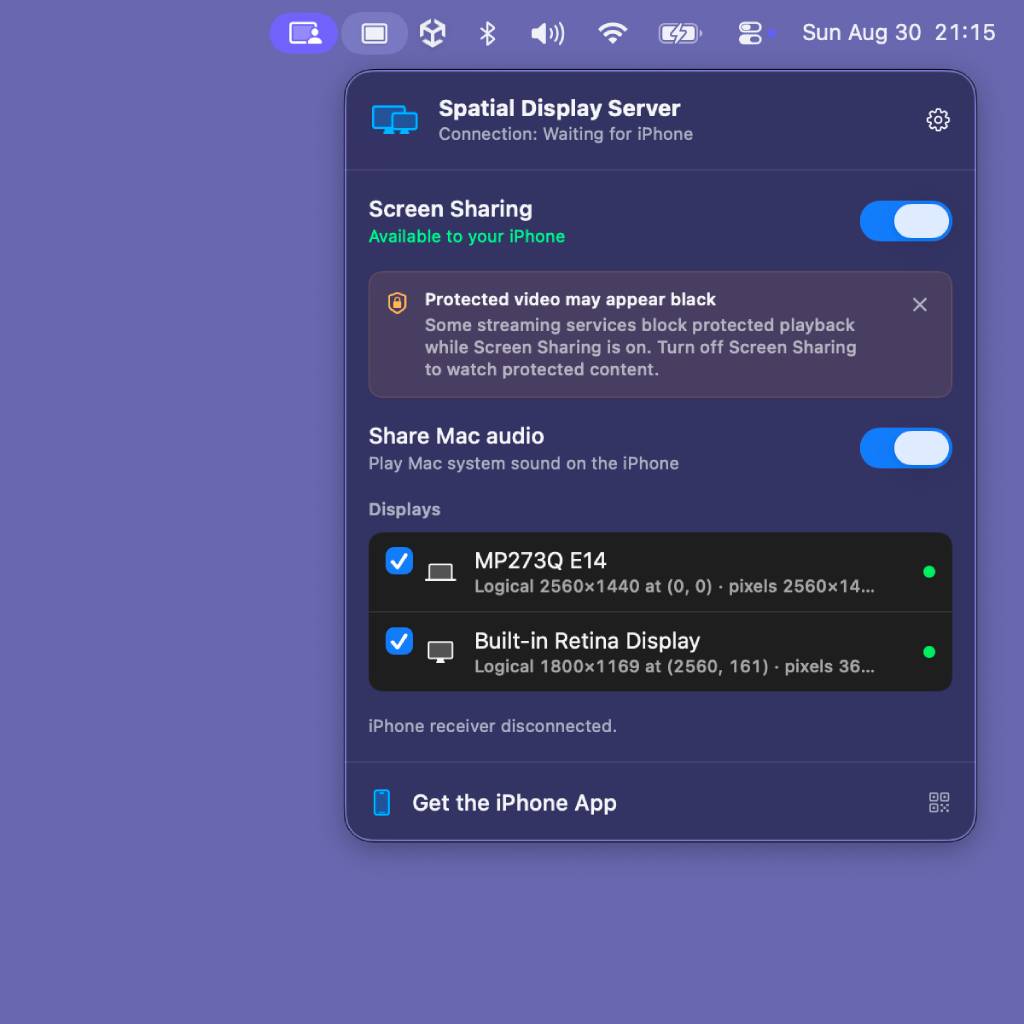
Spatial Display Server lives in the macOS menu bar. Choose screens, check permissions, share system audio and see the connected iPhone without keeping another desktop window open.
Ready after startupLaunch at login and optionally start Sharing automatically.
Adapts to your deskDisplay changes, resolution updates and selection changes trigger a clean reconfiguration.
Wake your Mac from iPhoneWake a previously connected Mac from Spatial Display when both devices are on the same local network. Ethernet may be required on the Mac.
Permissions made clearScreen Recording and Accessibility status are visible with direct links to System Settings.
07 / Private by design
Your screens are streamed, not stored.
Sign in with the same Apple or Google account on iPhone and Mac. The service handles authentication, device discovery and connection setup; screen and control data is sent only during the active WebRTC session.
WebRTC prefers a direct device-to-device path. When a direct connection is not possible, encrypted traffic can pass through a TURN relay. Mac screens are never recorded to cloud storage.
08 / How it works
From setup to spatial workspace in three steps.
01
Install the Mac companion
Install Spatial Display Server, grant Screen Recording and Accessibility access, then select the displays you want to share.
02
Sign in once
Use the same Apple or Google account on both devices. They find each other automatically.
03
Place your screens
Move your iPhone to look around, recenter a monitor, then touch, type, scroll or gesture.
09 / Spatial Display Pro
Start with one screen. Unlock the whole workspace.
The free experience keeps the first Mac display available. Spatial Display Pro unlocks every selected display on the connected Mac with monthly or yearly options through the App Store.
Local App Store pricing applies. Purchases can be restored and managed from the iPhone app.
Spatial Display Pro
Every selected display
Independent multi-monitor streams
Monthly or yearly subscription
Restore Purchases support
Get the iPhone app
10 / Technical foundation
Native capture. Open realtime transport.
Mac capture
ScreenCaptureKit
Video
Hardware-accelerated H.264
Connection
WebRTC · STUN · TURN when needed
Input
Ordered WebRTC data channel
Mac input
Accessibility + CGEvent
Tracking
ARKit / AR Foundation 6DoF
Audio
48 kHz stereo WebRTC
Minimum macOS
macOS 13
11 / FAQ
The useful details.
Does Spatial Display add a new display to my Mac?
No. The current version streams the existing displays connected to and selected on your Mac. It does not create a new virtual display in macOS.
Do both devices need to be on the same Wi-Fi network?
No. A local network can offer a more direct path, but Spatial Display can also connect over the internet or cellular data.
Does my screen pass through a server?
WebRTC first tries to connect the devices directly. If the network blocks that path, encrypted traffic may use a TURN relay. The screen is not stored.
Can I use multiple monitors?
Yes. Spatial Display Pro shows the displays selected on your Mac as independent spatial monitors.
Can Spatial Display wake a sleeping Mac?
Yes. On your Mac, set System Settings > Battery > Options > Wake for network access to Always. The iPhone and Mac must be on the same local network, and wake may require an Ethernet connection on the Mac. A powered-off Mac cannot be woken, and operation with a closed MacBook lid depends on macOS and the Mac model.
Why is protected video black?
DRM-protected services can block their video while macOS screen sharing is active. This is enforced by the operating system and content provider.
Spatial Display
Take your Mac workspace with you.
Install Spatial Display on iPhone and Spatial Display Server on the Mac you want to reach.
Get the iPhone app
Download the Mac companion
Spatial Display is the iPhone viewer and controller. Spatial Display Server is its required macOS companion.